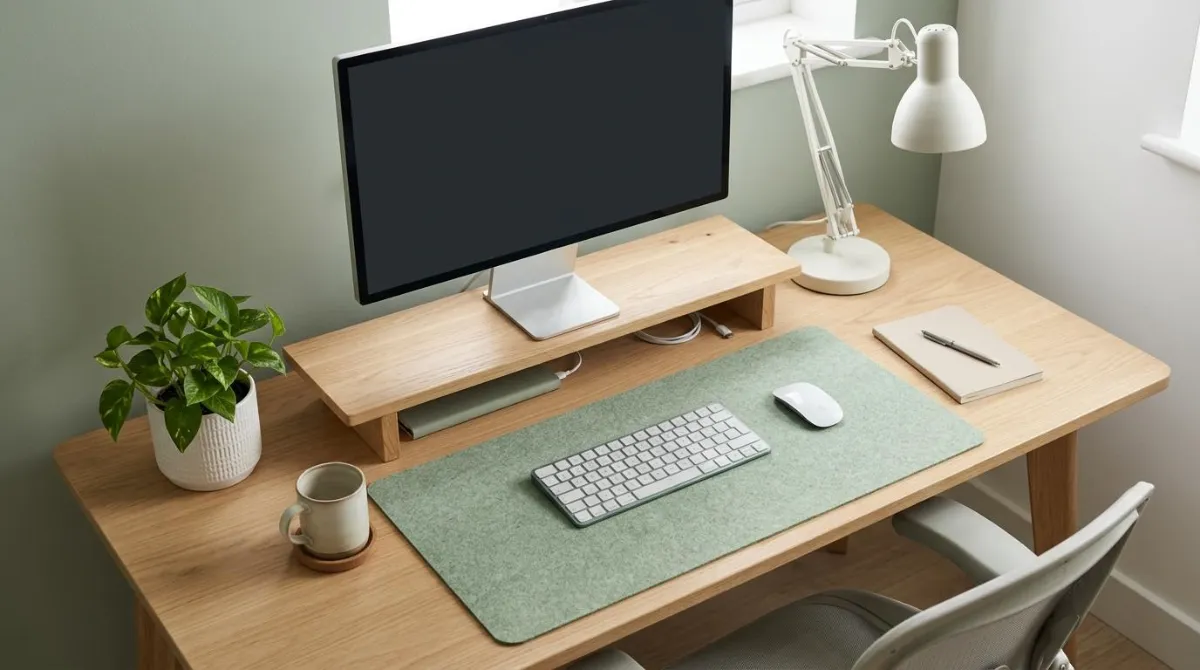
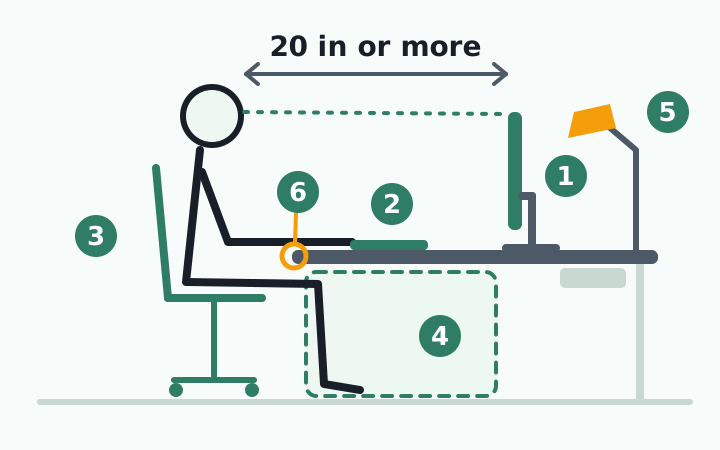
An ergonomic desk setup checklist starts with a tape measure, not a shopping cart. Before you buy anything, check three things: the desk is deep enough to put the monitor at least 20 inches from your eyes, the space under it is clear for your legs, and no window or lamp reflects off the screen.15 If those are off, accessories make the desk look better while the way you sit stays the same or gets worse.
This guide covers layout and what to check before buying gear. The height math for your body is in our monitor, desk, and chair height guide.
The ergonomic desk setup checklist: 10 measurements
The targets come from OSHA's Computer Workstations eTool and a tip sheet from the American Occupational Therapy Association (AOTA). Zone numbers match the figure.
| Zone | Check | Target |
|---|---|---|
| 1. Monitor | Distance | 20 to 40 in (50 to 100 cm) from your eyes3 |
| 1. Monitor | Direction | Straight ahead, never more than 35° to either side3 |
| 1. Monitor | Height | Top line of the screen at or slightly below eye level3 |
| 2. Keyboard and mouse | Keyboard | Directly in front, elbows close to your body6 |
| 2. Keyboard and mouse | Mouse | Right next to the keyboard4 |
| 3. Chair | Fit | Feet flat on the floor while you sit back against the backrest16 |
| 4. Legroom | Under the desk | 20 in wide, 17 in deep at the knees, 24 in deep at the feet2 |
| 5. Lighting | Windows | Screen at a right angle to windows5 |
| 5. Lighting | Reflections | No lamp or overhead light visible on the screen5 |
| 6. Desk edge | Front edge | Rounded or padded where your forearms touch1 |
How often do real desks miss these targets? In 2020, ergonomists at the University of Cincinnati reviewed photos of 41 home offices. External monitors were too low in 52% of cases, and the primary screen was off-center in 31%. Chairs were too low in 41%, and more than 90% of work surfaces had a hard, sharp front edge.9
It was a small volunteer sample from the early months of pandemic remote work in 2020, so read these as common misses, not national statistics.
Desk depth: the measurement that is easy to skip
Depth decides how far back the monitor can go. OSHA says the work surface should let you view the monitor from at least 20 inches (50 cm).1 If your desk is too shallow, the agency suggests pulling it away from the wall to make room behind the monitor.3
A quick test: sit back in your chair and raise your arm. Your fingertips should just about touch the screen.8 Run the test again after you add a shelf or speakers, because they take up depth too.
If you are shopping for a monitor riser or desk shelf, check whether the height is fixed. OSHA notes that setting a monitor on top of a computer case raises it too high for all but the tallest users.3 We cover how to work out the height you need in monitor riser vs. monitor arm.
OSHA's advice for the mouse is to keep it close to the keyboard.4 In a lab study of ten people at the University of Western Sydney, placing the mouse beside a keyboard with no numeric keypad lowered activity in the front and middle shoulder (deltoid) muscles compared with a full-size keyboard. Trapezius activity did not change.10 So a tenkeyless board is not only a style choice, though ten people is a small sample.
If a vertical mouse is on your list, placement still comes first. Cornell's guide warns that overreaching to an "ergonomic" mouse defeats the benefit of the design.8 See vertical mouse and wrist ergonomics.
Under the desk: when cable management steals your legroom
Cable trays, power strips, drawer units, and PC towers usually end up under the desk. The desktop looks cleaner, but your legs lose space. OSHA tells users to avoid storing items such as a CPU under the desk. When your legs can't fit, you sit farther from the desk and reach for the keyboard, which can lead to shoulder, back, and neck pain.1
| Keep clear | Minimum |
|---|---|
| Width | 20 in (52 cm)2 |
| Depth at knee level | 17 in (44 cm) |
| Depth at foot level | 24 in (60 cm) |
| Height at the feet | 4 in (10 cm) |
These minimums are meant to fit most users, from a 5th-percentile woman to a 95th-percentile man.2
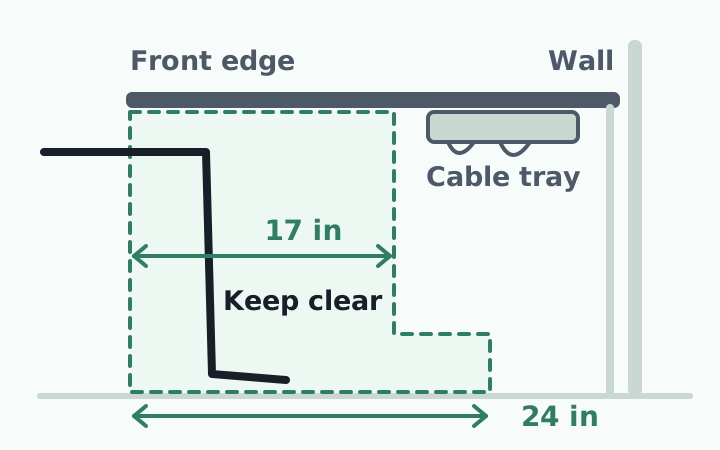
OSHA doesn't say where a cable tray should go, but the minimums point to an answer: mount trays more than 17 inches back from the front edge and keep floor power strips more than 24 inches back, close to the wall. OSHA advises removing a center pencil drawer if it hits your thighs and keeps you from raising the chair.6 Leave some slack in the cables too, so you can still slide the keyboard and monitor.
Desk lighting: mood light and work light are different jobs
Lighting changes how a setup looks and how you sit. OSHA warns that glare on the screen can cause eyestrain and headaches, and that you may work in awkward postures just to see the screen.5
On brightness, the agencies do not agree. OSHA suggests 20 to 50 foot-candles for paper tasks and up to 73 where LCD monitors are used, which works out to roughly 215 to 785 lux (our conversion at 10.76 lux per foot-candle). Canada's CCOHS lists only 75 to 300 lux for computer tasks and says the range depends on screen type and polarity.515
They do agree on one principle: big differences in brightness between the screen, the desk, and the surroundings tire your eyes.515 By that standard, a bright monitor in a dark room lit by RGB strips is a high-contrast scene. A bias light behind the monitor fits the principle, but none of the agency pages we read tested these products, so treat the benefit as plausible, not proven.
- Windows: set the screen at a right angle to the window, so you neither face it nor have it at your back. Use blinds or curtains if you can't move the desk.516
- Desk lamp: place it where the light does not reflect on the screen, and pick one with a shade so the bulb is out of your line of sight.5
- Screen: tilt the monitor down slightly if overhead lights show up on it. Dark text on a light background is less affected by reflections.5
Does glare change posture? The evidence is mixed. In a Norwegian lab experiment, 43 young women bent their heads forward under direct glare during 10-minute sessions.11 An earlier experiment by the same group, with 15 adults reading for 30 minutes, found no posture difference.12 Both found more blood flow in the trapezius muscle under glare.
Four questions to ask before buying "ergonomic" gear
These days just about everything is labeled as being "ergonomically designed" and much of the time this isn't true and these so-called ergonomic products can make things worse.
Alan Hedge, Professor, Cornell University, Cornell University Ergonomics Web, 2015
Hedge, who wrote Cornell's workstation guidelines, suggests four questions before you buy.8
- Do the product design and the manufacturer's claims make sense?
- What research evidence can the manufacturer provide?
- Does it feel comfortable over a long period? If it still feels wrong after about a week, stop using it.
- What do ergonomics experts say about it?
Even experts split on two popular accessories.
| Gear | In favor | Caution |
|---|---|---|
| Wrist rest | OSHA: proper use has been shown to reduce muscle activity and help keep wrists straight7 | Cornell guide: studies have not shown substantial benefits, and a rest can press on the underside of the wrist8 |
| Forearm support | UCSF trial: 182 call center operators followed for a year; those given a wide forearm board had about half the rate of neck and shoulder disorders (hazard ratio 0.49)13 | Cornell guide: usually unnecessary, and needing one is a sign of a poor arrangement8 |
A 2018 Cochrane review also called the evidence for arm supports and alternative mice inconsistent.14 The practical answer is a trial period at your own desk. If you use a wrist rest, keep your hands floating while you type and rest the heel of your palm on it only during pauses.7
The same logic applies to a gaming chair or any chair picked for its looks. In the Cincinnati review, 69% of people were not sitting against the backrest and 73% of chairs had no lumbar support.9 More on that in why your head still drifts forward in a gaming chair.
A 6-point check for the desk you already have
Sit the way you normally work and go down the list before you add any decor.
- Sitting back with an arm raised, my fingertips almost touch the screen
- The monitor is straight ahead and its top line is not above my eyes
- The mouse sits right beside the keyboard
- Nothing is stored where my knees and feet go
- No window or lamp reflects on the screen
- The front edge of the desk does not dig into my forearms
Low-cost adjustments count. The Cincinnati team suggested a pillow to raise a seat that is too low, and a folded towel or split pipe insulation over a hard desk edge.9
Will a perfect checklist keep pain away? That is more than the evidence supports. The Cochrane review pooled 15 randomized trials with 2,165 office workers. The one trial of workstation adjustment found no effect on upper limb pain, while extra breaks reduced neck and arm discomfort, based on very low-quality evidence.14 Setup and movement are separate jobs. The Cincinnati authors recommend standing up and moving for 2 minutes every 30 minutes.9
If pain, numbness, weakness, or dizziness in your neck or arms keeps coming back, don't try to solve it with desk layout alone. See a doctor for a proper evaluation. This checklist is for checking your workspace. It is not a diagnosis.
If you're building your dream desk setup, run through the checklist above before adding accessories. The more you add, the easier it is to crowd out the space your body needs.
A dialed-in desk still can't watch your posture for you
The order is measurements, light, cables, then decor. Today, measure three things: eye-to-screen distance, clear width under the desk, and the reach to your mouse.
One problem remains. Even at a well-fitted desk, your head drifts toward the screen once you are absorbed in work, and that moment is hard to notice from the inside. What you can do at the desk is build the habit of catching the moment your head moves forward and bringing it back.
RightPose AI is a desktop app for Windows and Mac that handles the part a finished desk can't. Using the webcam on your laptop or monitor, it takes a brief look at your posture at a set interval (every 5 minutes by default) and shows an on-screen alert when your head has drifted forward. It compares you with a good posture you register yourself at the start. Camera images are processed on your device and are not sent off it.
Your setup is done; fill the last slot by registering your good posture. That's where a better-posture routine begins.
RightPose AI is not a medical device. It is a habit tool that notices your posture and nudges you to reset and stretch.
FAQ
What should I buy first for a desk setup?
Start with the chair, then the desk, then monitor placement, lighting, cable management, and decor last. AOTA's tip sheet calls the chair the foundation that everything else is built around, and notes that most home work surfaces are too high in relation to home chairs.16 Buying in this order means later purchases don't force you to redo earlier ones.
How deep should a desk be for a 27-inch or ultrawide monitor?
Judge by the distance from your eyes to the screen instead of a desk size chart. OSHA's minimum is 20 inches, and AOTA suggests a few inches more than arm's length for very large or multiple screens.116 If you can't get that distance, pull the desk away from the wall, move the screen to a corner, or increase the text size.3
Do monitor light bars or bias lighting reduce eye strain?
The agency guidance we read does not evaluate these products directly. You can still judge one by the principles: no light reflecting on the screen, and no large brightness gap between the screen and its surroundings.515 Symptoms that persist are a reason to see an eye doctor, since an outdated prescription can be part of the problem.17
Is a keyboard tray worth adding?
It can help when the desk or chair can't be adjusted, or when desk space is limited. OSHA says a tray should adjust in height and tilt, leave enough leg and foot clearance, and have room for both keyboard and mouse.6 A tray that only fits the keyboard pushes the mouse onto the desk and makes you reach.4
References
- Computer Workstations eTool: Workstation Components - Desks
- Computer Workstations eTool: Workstation Components - Desks - Work Space
- Computer Workstations eTool: Workstation Components - Monitors
- Computer Workstations eTool: Workstation Components - Pointer/Mouse
- Computer Workstations eTool: Workstation Environment
- Computer Workstations eTool: Workstation Components - Keyboards
- Computer Workstations eTool: Workstation Components - Wrist/Palm Supports
- Ergonomic Guidelines for arranging a Computer Workstation - 10 steps for users
- The Home Office: Ergonomic Lessons From the "New Normal"
- Influence of mouse position on muscular activity in the neck, shoulder and arm in computer users
- Visual and psychological stress during computer work in healthy, young females - physiological responses
- Effect of Direct Glare on Orbicularis Oculi and Trapezius During Computer Reading
- A randomised controlled trial evaluating the effects of two workstation interventions on upper body pain and incident musculoskeletal disorders among computer operators
- Ergonomic interventions for preventing work-related musculoskeletal disorders of the upper limb and neck among office workers
- Lighting Ergonomics - Survey and Solutions
- Home Office Ergonomic Tips
- Computer vision syndrome
This article is for general information only and is not a substitute for medical diagnosis or treatment. If pain persists or worsens, consult a medical professional.