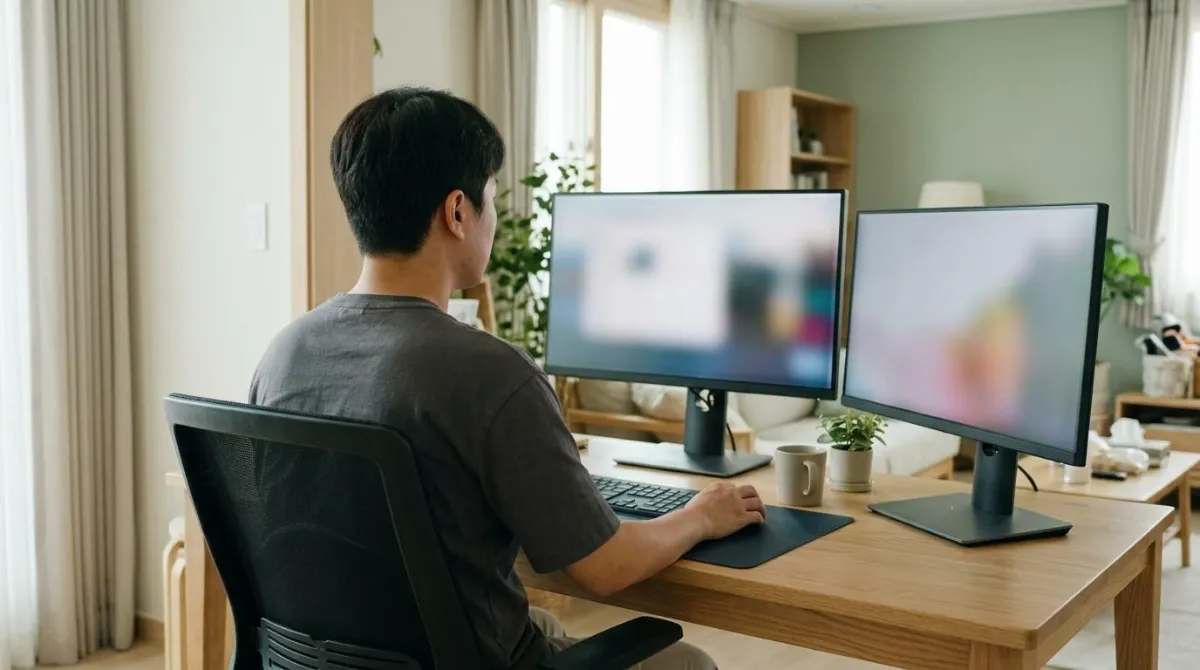
A good dual monitor ergonomics setup starts with one question: how do you split your time between the two screens? If you use one screen most of the time, put that screen straight in front of you and place the second one right beside it, angled in. If you use both about equally, center the seam where the screens meet and angle them into a shallow curve.1 Either way, keep both screens at the same height and about the same distance from your eyes.
Below: the guidelines, the neck studies, side-screen angles, heights, and portrait and laptop setups.
Dual monitor ergonomics setup starts with your usage split
The Canadian Centre for Occupational Health and Safety (CCOHS) puts it in that order: first decide how much you use each monitor. Equal use means edges together in a semi-circle. Uneven use means the main screen goes directly ahead as if it were your only monitor, with the other angled to one side like half of a semi-circle.1
Here is how three guidelines compare.
| Source | Layout | Numbers given |
|---|---|---|
| CCOHS (Canada) | Usage split first; main screen ahead, or a semi-circle for equal use1 | About arm's length, same height for both1 |
| OSHA (US) | Primary in front, others right beside it; equal use: side by side, minimal head movement2 | None |
| UC Davis Safety Services | Primary and keyboard in front; equal use: keyboard centered3 | Side screen about 30° to the main one; keyboard within 12 in of screen center3 |
Not sure about your split? For one day, note which screen you type and read on. The split can change with the work, so your layout can too.
Dual monitor neck pain: what the studies actually measured
Dual monitor studies measure how far the head turns and how hard neck muscles work; none we found tracked who develops neck pain. In one, Ashish D. Nimbarte and colleagues had 10 healthy people read for 10 minutes, type for 5, and search for 10, on one screen and then two.4
With two screens, head and neck rotation was 9.0° greater and the range of rotation was 8.4° wider. Activity rose in one sternocleidomastoid, a muscle on the front of the neck. Trapezius activity in the neck didn't change.4
| Study | Who and how | Finding |
|---|---|---|
| Nimbarte et al. 20134 | 10 people, 25 min, one vs two screens | 9.0° more rotation with two |
| Burruss et al. 20235 | 17 people, 6 layouts, 5 tasks | Centered vs side layouts: depended on the task |
| Fang et al. 20237 | 20 people aged 19 to 26, V vs L shape | More muscle activity and eye strain with V |
| Farias Zuniga & Côté 20178 | 27 people, laptop vs dual, 90 min | Less neck extensor activity with dual |
| Gallagher et al. 20219 | Review of 18 studies | Users prefer dual; necks may leave neutral |
At the University of Arkansas, Kaitlin M. Gallagher's lab studies how monitor setups affect neck movement. Comparing six layouts, they found the typical neck angle stayed near neutral with one screen or two centered screens. With the user centered on the left screen, the right screen turned to portrait, or a laptop added as a second screen, it pointed to the right.6
Results also differed across the five tasks, so the team didn't name one best layout. Their advice: keep dual displays, but use them with a monitor arm so you can switch between centered and side layouts as needed.5
Shape matters too. At Ningbo University in China, researchers compared V-shaped and L-shaped layouts, with angles the participants chose. The V shape brought more left upper trapezius and right neck extensor activity, and more eye strain.7
Against a laptop, dual monitors looked better. In Julie N. Côté's lab at McGill University in Montreal, 27 people worked 90 minutes on each setup. Right neck extensor activity was lower at the dual monitor desk, which the authors read as a possible health benefit.8
Implementing multiple monitors may also result in nonneutral neck postures for users.
Kaitlin M. Gallagher et al., University of Arkansas, systematic review of 18 studies, Human Factors, 2021
Germany's Institute for Occupational Safety and Health (IFA) was more reassuring: in its measurements, physiological results and user preferences both favored two screens, with no sign of a hazard.10
Keep the limits in mind: 10 to 27 participants, mostly young adults, watched for 25 to 90 minutes at a time. The Gallagher review calls for long-term field studies.9 If you code across two screens all day, see our developer desk posture guide.
How far to angle the side monitor, and what angling won't do
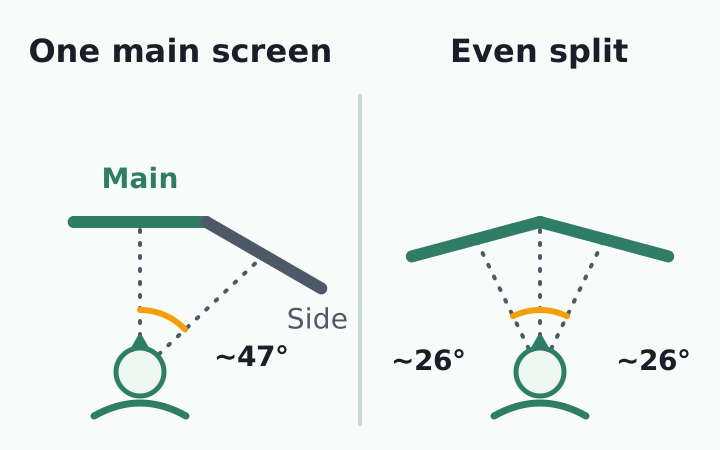
University guides such as UC Davis suggest setting the side screen at about 30° to the main one.3 Angling, though, doesn't bring the side screen any closer to straight ahead. Here is our geometry for 24-inch 16:9 screens seen from above, with your eyes 60 cm (about 24 inches) away, bezels ignored, and screens pivoting on the edge where they meet.
| Layout (24 in, 60 cm) | Angle to screen center | Eye-to-screen distance |
|---|---|---|
| Main screen, straight ahead | 0° | 60 cm (24 in) |
| Even split, flat in line | About 24° | About 66 cm (26 in) |
| Even split, each angled in 15° | About 26° | About 59 cm (23 in) |
| Side screen, flat in line | About 42° | About 80 cm (31 in) |
| Side screen, angled in 30° | About 47° | About 68 cm (27 in) |
| Side screen in portrait | About 35° | About 73 cm (29 in) |
Angling the side screen in brings it from 80 cm to 68 cm, close to the main screen's 60 cm, and turns its face toward you. The angle to its center actually grows a little, from 42° to 47°. How far your head really turns also depends on your eyes and torso, so treat these as geometry, not measurements. What angling buys you is distance. Your eyes adjust their focus for each viewing distance, as CCOHS explains,1 so screens at similar distances should mean less refocusing each time you switch (our reasoning).
To shrink that angle, move the screens instead. Butt the side screen against the main one and choose thin bezels.3 Pushing both back helps too: at 70 cm (about 28 inches), the side screen's center drops to about 37° in our calculation, in line with CCOHS advice to set wide screens a little farther away.1
Start at arm's length; if text looks small, CCOHS says to enlarge the font rather than pull the screen closer.1 Save the side screen for things you check now and then.
Add one line to your daily routine: when you sit down, pick the screen you'll use most today and slide it in front of your keyboard before you start.
Matching height with a dual monitor arm or riser
Both screens should sit at the same height, at eye level, or a little lower if you wear corrective lenses.1 When heights differ, every switch adds an up-and-down nod to the side-to-side turn.
Screens of different sizes or with different stands make this harder.3 Line up the top edges, not the centers, since the height rule is about the top. To work out how far a screen needs to rise, use the measuring steps in our monitor stand vs monitor arm guide.
A two-screen riser lifts both screens together but can't fix a height gap between them; UC Davis suggests separate risers when each monitor needs a different lift.3 A dual monitor arm adjusts each screen on its own, which also makes switching layouts easy.5
Portrait monitors and laptop-plus-monitor setups
Portrait monitor: align the top edge
Turning a 24-inch screen to portrait cuts its width to about 30 cm (12 inches), so as a side screen its center sits about 35° off, versus about 42° in landscape. Its height grows to about 53 cm (21 inches), though, and that is where setups go wrong.
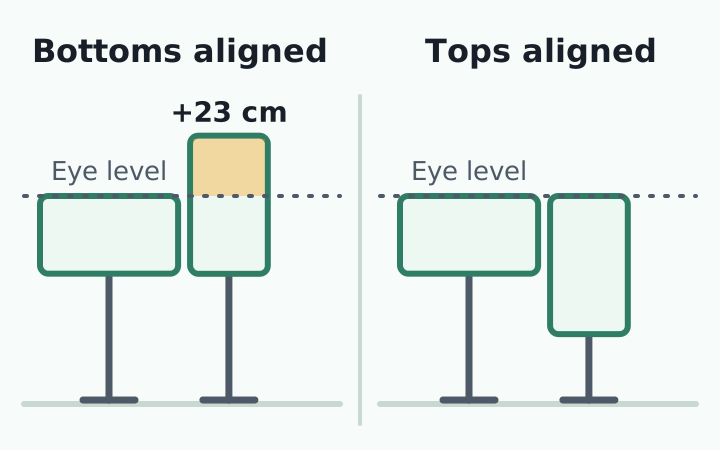
CCOHS says a portrait screen's top should be no higher than your eyes.1 With your landscape screen's top at eye level, lining up the bottoms puts the portrait top about 23 cm (9 inches) above your eyes, and lining up the centers about 12 cm (5 inches). Necks also turned toward the portrait side screen in the Arkansas study, so on long reading days, move it to the center.6
Laptop plus monitor: raise the low screen
A laptop flat on the desk sits well below an external monitor. In the Arkansas study, a laptop as a side screen next to a 24-inch monitor was one of the layouts that kept necks turned to one side.6 A small, low side screen means turning and looking down at once.
- Decide which keyboard you type on. If it's the laptop's, the laptop is your main screen.
- If the external monitor is your main screen, center it and raise the laptop beside it so the top edges line up.
- If the laptop is your main screen, raise it on a stand and add a separate keyboard and mouse. Our laptop stand guide walks through it.
- If you rarely look at the laptop screen, close the lid and work on the monitor alone.
If neck or shoulder pain lasts more than a few days, or comes with arm or hand numbness, weakness, or dizziness, see a doctor before you rearrange your desk. The angles and heights here are setup guides, not a diagnosis.
After the layout is set, the habit is what's left
To sum up: center the screen you use most, line up the top edges, and keep both screens at a similar distance. Check three things at your desk today.
- The screen you'll use most today is straight in front of you and your keyboard
- Both top edges sit on one line, at or slightly below eye level
- With your arm stretched out, both screens are about the same distance away
A good layout doesn't hold your posture for you. Once you're deep in work, your head drifts toward the screen even when it's centered, and you rarely notice the moment it happens. What you can do at your desk is build a habit of catching that moment and resetting.
RightPose AI is a desktop app for Windows and Mac that flags those moments after your layout is done. Place your webcam on or next to the screen you use most, and register your good posture while facing that screen. At an interval you choose (5 minutes by default), the app takes a quick look through the camera and lets you know on screen when your head has moved forward. Camera images are processed on your device and never leave it.
If you're building a better daily routine, put your webcam by your main screen today and start by registering your good posture.
RightPose AI is not a medical device. It is a habit tool that notices your posture and nudges you to reset and stretch.
FAQ
Is stacking dual monitors vertically better for your neck?
Stacking removes the side-to-side turn, but you tilt your head back to see the top screen. CCOHS notes that a screen above eye level causes more discomfort than one that sits slightly too low.1 Keep the top screen for things you only glance at.
Should the second monitor go on the left or the right?
There's no proven answer. Some guides say to put it on the side of your dominant eye, but we didn't find a study that tested that. In the Arkansas experiment, necks turned toward the side screen, which sat on the right,6 so if one side of your neck feels tight, try moving the side screen to the other side for a while.
Is one ultrawide monitor better than two monitors?
In the Arkansas lab, a 34-inch curved ultrawide set a bit farther back produced neck movement similar to a single 24-inch screen.5 You still turn your head to reach the far edges, so follow the CCOHS advice to move wide screens farther away.1 That study had 17 participants, so treat it as a first look.
Can I use two monitors of different sizes?
Yes. UC Davis does recommend matching size and resolution to reduce eyestrain.3 With mismatched screens, line up the top edges and adjust display scaling so text looks about the same size on both.
References
- Office Ergonomics - Positioning the Monitor
- Computer Workstations eTool: Checklists, Evaluation
- Dual Monitor Setup
- The Impact of Use of Dual Monitor Screens on 3D Head–Neck Posture and Activity of Neck Muscles
- Examining Potential User Experience Trade-Offs Between Common Computer Display Configurations
- Biomechanical impact of computer monitor configurations on neck axial rotation
- The effects of dual screen layout on neck-shoulder muscle activity and head-neck posture variability during computer tasks
- Effects of Dual Monitor Computer Work Versus Laptop Work on Cervical Muscular and Proprioceptive Characteristics of Males and Females
- Does Using Multiple Computer Monitors for Office Tasks Affect User Experience? A Systematic Review
- Office workstations with multiple screens
This article is for general information only and is not a substitute for medical diagnosis or treatment. If pain persists or worsens, consult a medical professional.